Save classes and instances
Selecting File|Save As... from the main menu will display a dialog that can be used to
save classes and/or instances to either a MOF file or an XML file.
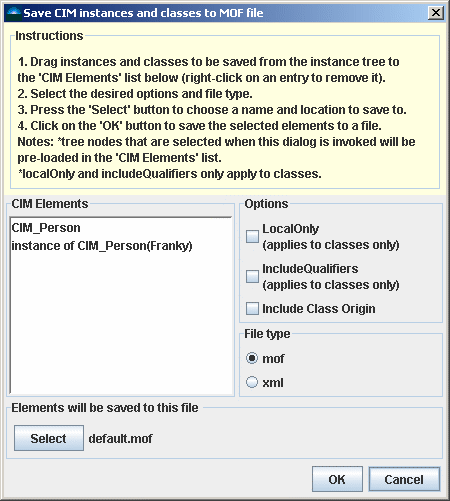
Any instances or classes that were selected when the dialog box is invoked will be pre-loaded
into the list of CIM Elements to be saved. Additional classes and instances can be
dragged to the CIM Elements list from the Instance Tree. To remove an
item from the list, just right-click on it to display an 'Are you sure' deletion prompt.
Once all of the classes and instances to be saved have been specified, select any options
as desired (the meaning of these options is consistent with DMTF documentation).
Now select whether the selected CIM Elements should be saved to a file with mof or XML
formatting. Pressing the Select button will allow for specification of the
filename and directory to which the file will be saved.
When the OK button is selected, the CIM Elements will be saved to the specified file.
Show superclass name
Right-clicking on any class node in the instance tree will display a context menu. Selecting
Show superclass name... will display a messsage box containing the name of the selected class'
superclass.
Right-clicking on any class node in the instance tree will display a context menu. Selecting
Derive new Class... will display a dialog box that allows for the creation of a new class
which extends the selected class.
To define a class which has no superclass, click on the root node in either the instance tree or the
class browser dialog and select Create new class... to display a the class editor dialog.

* First, specify the name of the class in the text field labeled Editing class.
* Any required qualifiers may be added to the new class by clicking on the button labeled Add... in the
Qualifiers panel.
* To add new properties, click on the button labeled Add... in the Properties panel
(properties of the parent class will not be shown in the table of properties, but they will be
inherited nonetheless). A new properties editor will be displayed that allows for definition
of the new properties' name and type.
Once a property has been added to the table of properties, right-click on it to add any
required property qualifiers.
Create New Instance
Right-clicking on any class node in the instance tree will display a context menu. Selecting
Create new instance... will display the Instance Editor dialog.
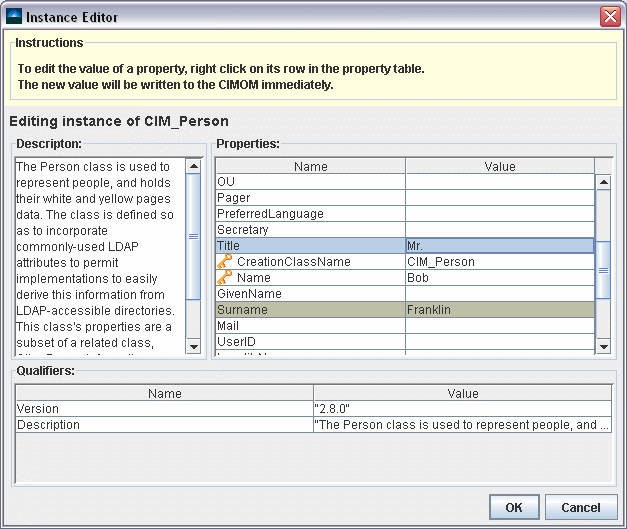
This dialog displays the class' Description qualifier in a panel on the left, a table of all
of the class' properties on the right, and a table of the class' Qualifiers across the bottom.
Properties that have a 'Required' qualifier value of 'true' are displayed with a brownish-gray highlight
(for example the 'Surname' row shown here). Key properties are identified with a  icon.
icon.
When creating a new instance, make sure that all 'key' properties have been
defined. Selecting the OK button will dismiss the dialog box, create a new instance in the CIMOM,
and add a new instance node as a child to the node representing the class in the instance tree.
To edit a property, right-click its row in the Properties table to display a property editor dialog.
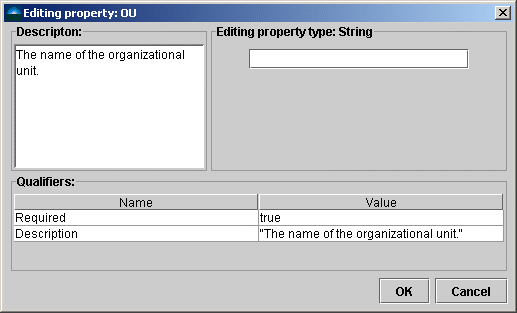
Here again, the property's Description qualifier is displayed in a panel on the left. An editor
panel specific to the property being edited is displayed on the right. Each basic type of property will have an
editor which is specific to its type. Across the bottom of the dialog is a table of qualifiers for the property.
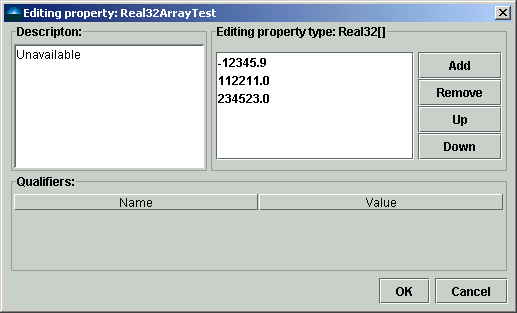
If the property being edited is an array data type, a dialog box similar to the following will be displayed.
To edit one of the entries, right-click on its row to display an editor for the property.
Editing Instances
To edit an existing instance, first select it in the instance tree. Select the Properties tab
to show all properties for that instance. Right-click on any property to display a property editor dialog.
Alternatively, right-clicking on any instance in the Instance Tree will display a context menu. Select
Properties... from the context menu to display the Instance Editor dialog. Right-clicking on
any property in this editor will display a property editor dialog.
Deleting Classes and Instances
Instances and classes can be deleted from the CIMOM. Right-clicking any node in the instance tree will
display a context menu. Select Delete instance... or Delete Class..., as appropriate,
from the context menu. An "are you sure" prompt will be displayed. Upon answering Yes to this
prompt, the selected class or instance will be deleted.
Multiple instances may be deleted in a single operation. Hold down the Ctrl key while selecting
nodes in the Instance Tree. When all desired instances have been selected, right-click to bring up
an "are you sure prompt". Answering Yes to this prompt will cause all selected instances to be
deleted.
Note: deleting a class will also delete all instances of that class.
Note: deleting an instance will also delete all associations of which that instance is a member.
© 2005 DuskFire, Inc. All rights reserved.