Connection to Server
To do anything useful, CimNavigator MUST be connected to a CIMOM. The
Configure host connection is provided to facilitate the establishment
of this connection. The dialog is accessed by selecting
Edit|Server configuration... from the main menu.
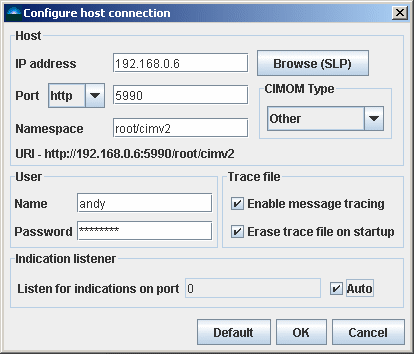
Enter the appropriate parameters in this dialog:
IP address - computer hosting the CIMOM that you want to connect to. You may enter a host name,
'localhost', or an IP address of the form xxx.xxx.xxx.xxx. If you are working with a
CIMOM that is advertised via SLP, you should be able to browse for it using the Browse (SLP)
button (see below).
Port - selecting http or https will establish the Port number - http(5988) is
the default value. If the CIMOM uses a non-standard port number, it can be entered here explicitly.
Namespace - namespace to connect to.
CIMOM Type - used to specify the CIMOM that is being connected to (available selections
are currently 'OpenPegasus', 'WBEMServices', or 'Other').
Name - name of the user to connect as.
Password - password to be associated with the above entered user.
Enable Message Tracing - enables tracing of XML messages exchanged between the client
and the server.
Checking this box will cause the XML messages sent between the client and
the server to be written both to the console, and to a file named CIMClientXML_Trace.txt
in the root cimnavigator directory. Each time CimNavigator
is started, the current session's messages will be appended to this file. Therefore, one must
check that this file doesn't grow without bound (see following item).
Erase trace file on startup - checking this box will cause any existing trace file to be deleted
when the applicaiton is next started. This will prevent the trace file from being appended to each time CimNavigator
is run.
Indication listener - the port number that CimNavigator will listen for indications on. This can set manually
by unchecking the Auto checkbox and specifying an available port number. Alternatively, by checking the
Auto checkbox, an available port will automatically be chosen for receiving indications. Note that this
port number is likely to change each time CimNavigator is run.
If 'perminant' listener destinations are being used, then specified port numbers may make the most sense.
The values for this dialog are persisted to the CimNavigator.properties file in the user's
'home" directory. On a Windows machine, this would be
c:\Documents and Settings\user name\CimNavigator.properties. The password
is stored in this file in clear text!.
New! Browse(SLP) - Selecting this button will
present a dialog box that displays the result of a search for any CIMOMs that are advertised via SLP.
When the Query status indicator indicates Done, selecting a
WBEM service from the list in the left-hand panel will cause its attributes to be displayed in the
Attribues panel on the right.
To establish a connection with one of the found WBEM services, just select it in the list of
Found WBEM services and click on the OK button. This will dismiss the
dialog box and populate the Configure Host Dialog box with values corresponding to
the selected WBEM service.

© 2005 DuskFire, Inc. All rights reserved.