New! Indication Subscriptions
CimNavigator now supports indications. A new, step-through dialog box has been added to
guide the user through the creation of indication subscripations. There are two ways to
invoke this dialog:
Select Tools|Create Indication Subscription... from the main menu.
Select Create indication subscription... from the context menu displayed by
right-clicking on a class node in the Instance Tree.

The first page of the dialog lists existing CIM_IndicationFilter instances.
New indication filter instances can be created by pressing the Create new button.
Right-clicking on any existing filter instance will display a properties editor dialog that
can be used to modify the selected instance's properties. Although the 'Query'
property of the selected filter can be edited using the property editor, the
'Query' property string can also be edited in the next page, displayed after
selecting the Next >> button.

The primary focus of this page is to edit the value for the 'Query' property of the indication
filter. This value can be entered directly into the Query string text field,
or you can build the Query string by:
- 1. Dragging an object node from the Instance Tree to the Type (----) panel.
- 2. Select an Indication type.
- 3. Select an Indication Property.
Select Next >> to choose an indication handler.

Select a CIM_ListenerDestiation from the list and press the Finish button to create the
new indication subscription. Alternatively, a new handler instance can be created by pressing
the Create new button.
Again, right-clicking on a listener instance will display a
properties editor dialog that can be used to modify the selected instance's properties.
Viewing Subscriptions
To see any existing indication subscriptions, select the Indications tab on the
main window:
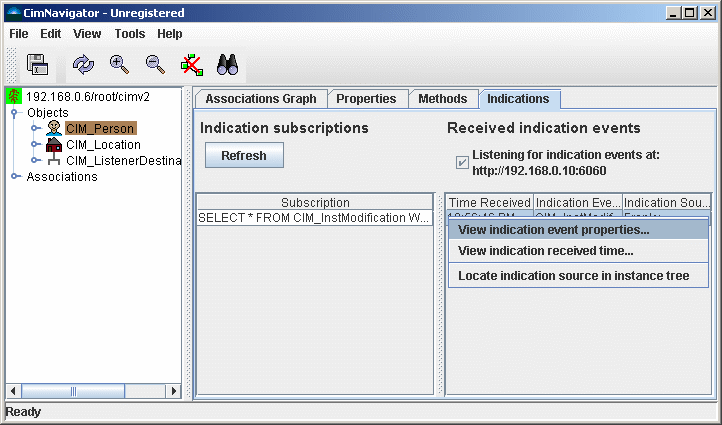
Any newly created indication subscriptions should be automatically displayed. To see all
indication subscriptions, press the Refresh button.
Also shown is the URL which CimNavigator is listening for indications on.
Right-clicking on a row in the Subscription table will display a context menu
that allows the user to view the properties of the subscription, filter, or handler,
or to delete the subscription instance.
Any received indications are displayed in a table on the right side of the
Indications panel, with the most recently received indication at the top of the
table. Right-clicking on an indication will display a context menu that allows the user
to view the indication's properties, the time that the indication was received, or
locate the indication source instance (if applicable) in the Instance Tree.
© 2005 DuskFire, Inc. All rights reserved.