Developer Tools
The Tools menu contains a number of tools that may be of interest to CIM developers.
Tools|Layout - Will layout any nodes currently displayed in the Associations Graph as described
in the section titled Navigating Associations below.
New! Class Browser
Selecting Tools|Browse classes... will display a dialog that allows for the
browsing of classes in the CIMOM. On initial display, all first-level classes will be shown in
alphabetical order. Clicking on any node that has children will expand the node to display
any classes that inherit from the selected class.
Right-clicking on any class node will display a context menu that allows the user to delete or
edit (view) the class, or to derive a new class
from the selected node. Right-clicking on the root
node will display a context menu that allows the user to define a new class
that has no superclass.
Class nodes can also be dragged onto the instance tree to add them as branch object classes.

WQL Queries
Selecting Tools|Query (using WQL) will display the WQL Query dialog.

This dialog allows one to perform WQL queries against the CIMOM. Just enter
the query string into the text field labled Query string and press the Query button.
Depending on the CIMOM, you may need to specify WQL1 or WQL2 for the
query level.
Any results will be displayed in the Query results list box. Note that you may right-click
on a found instance to view its properties, or drag a found instance to the Associations Graph
to view its associations.
Specialized queries
A number of specialized queries are now available for exploring the CIMOM:
* Select Tools|Associators... to find objects that are 'related' to some 'root' object.
* Select Tools|References... to find associations that some 'root' object either is, or can
be a member of.
* Select Tools|EnumerateInstances... to find instances of a specified 'root' class.
These dialogs are all very similar in appearance and behavior, implemented using step-through dialog boxes.
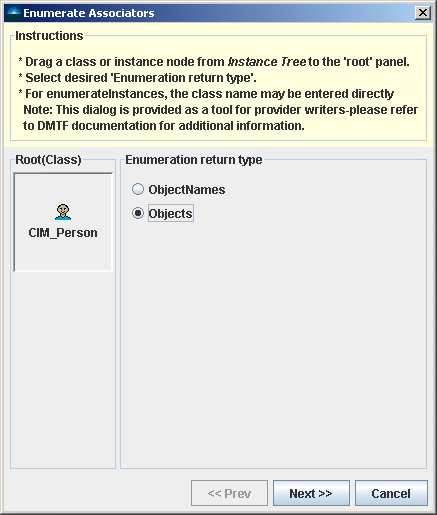
To use these dialogs, drag a class or instance from the instance tree to the panel labeled Root(----),
select whether ObjectNames or Objects should be returned, and press Next >>.
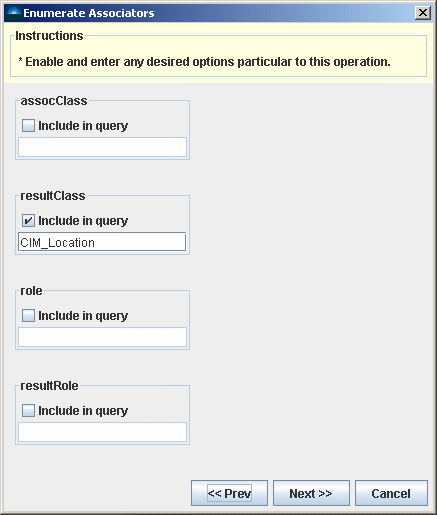
Select any desired options that are pertinent for the operation and press Next >>.
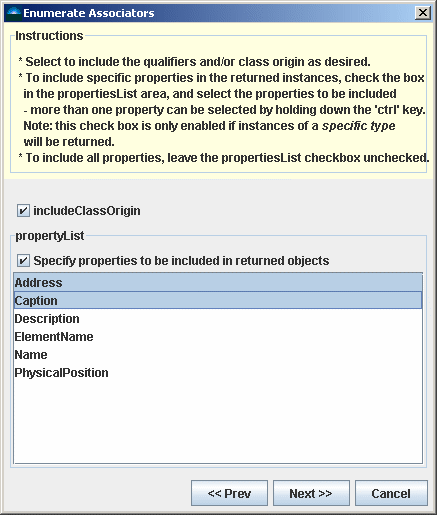
The third page allows for the selection of which properties should be returned (this
only applies if objects of a specific type are being requested from the CIMOM. If the
request might result in objects of more than one type being returned, the ability to
specify properties to be included in returned objects will be disabled). After any
appropriate selections are made press Next >>.
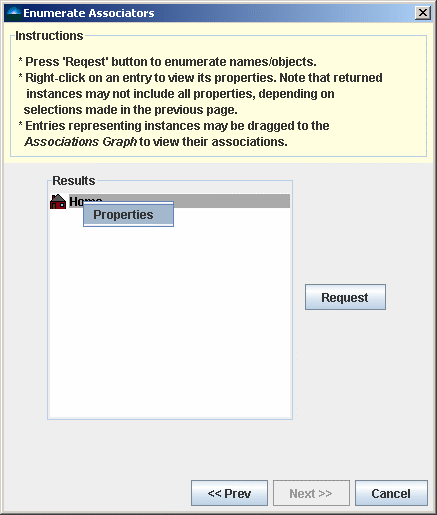
Finally, pressing the Request button will perform the requested operation on the CIMOM.
Returned objects will be displayed in the Results list box.
Note that you may right-click on a found instance to view its properties, or drag a found instance
to the Associations Graph to view its associations. Select the Cancel button to dismiss the dialog.
NOTE: This dialog box is intended primarily to be of use to provider writers.
Please refer to DMTF documentation for additional information.
© 2004, 2005 DuskFire, Inc. All rights reserved.